Computer Lab Access
Logging into Desktops
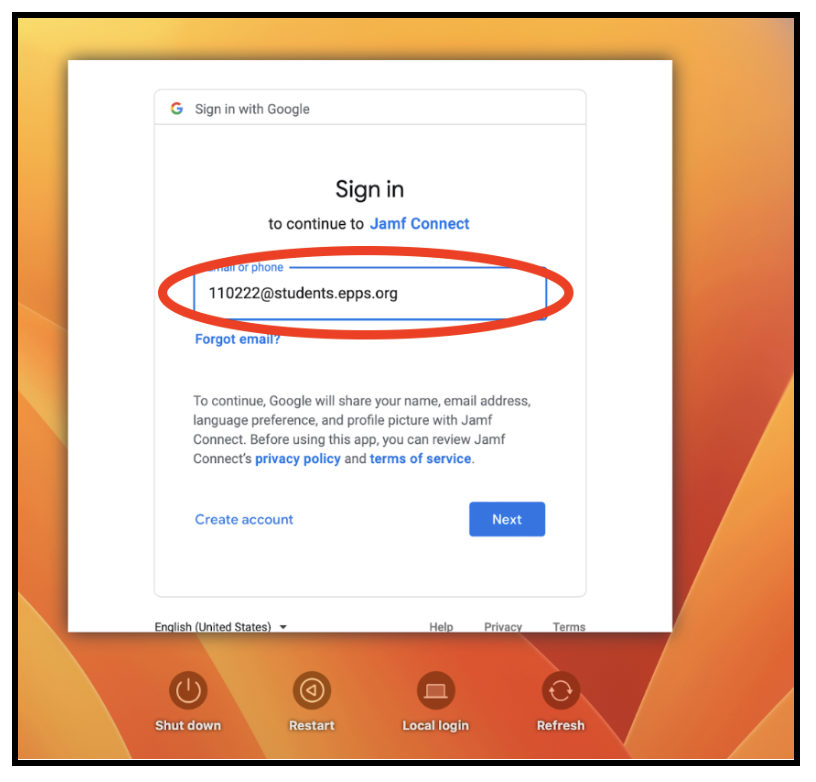
Enter your school email address.
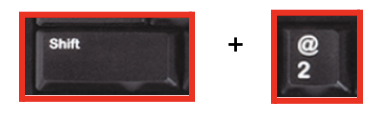
Example: 110222@students.epps.org (Be sure to enter your ID number. To make the @ symbol, press the shift key + 2)
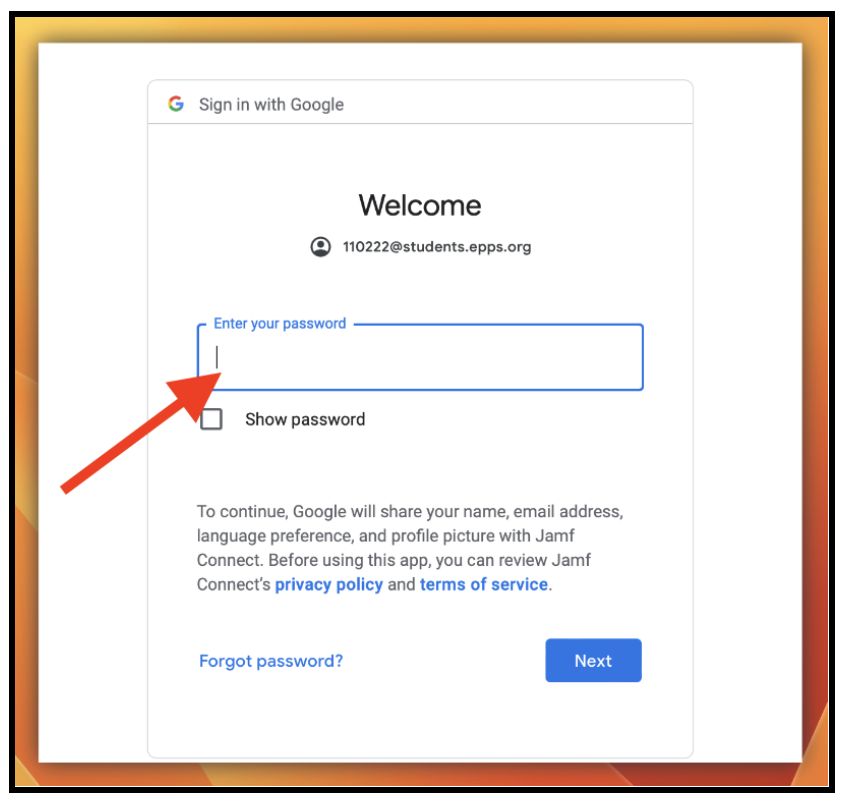
2. Enter your password.
3. Click on Create account.
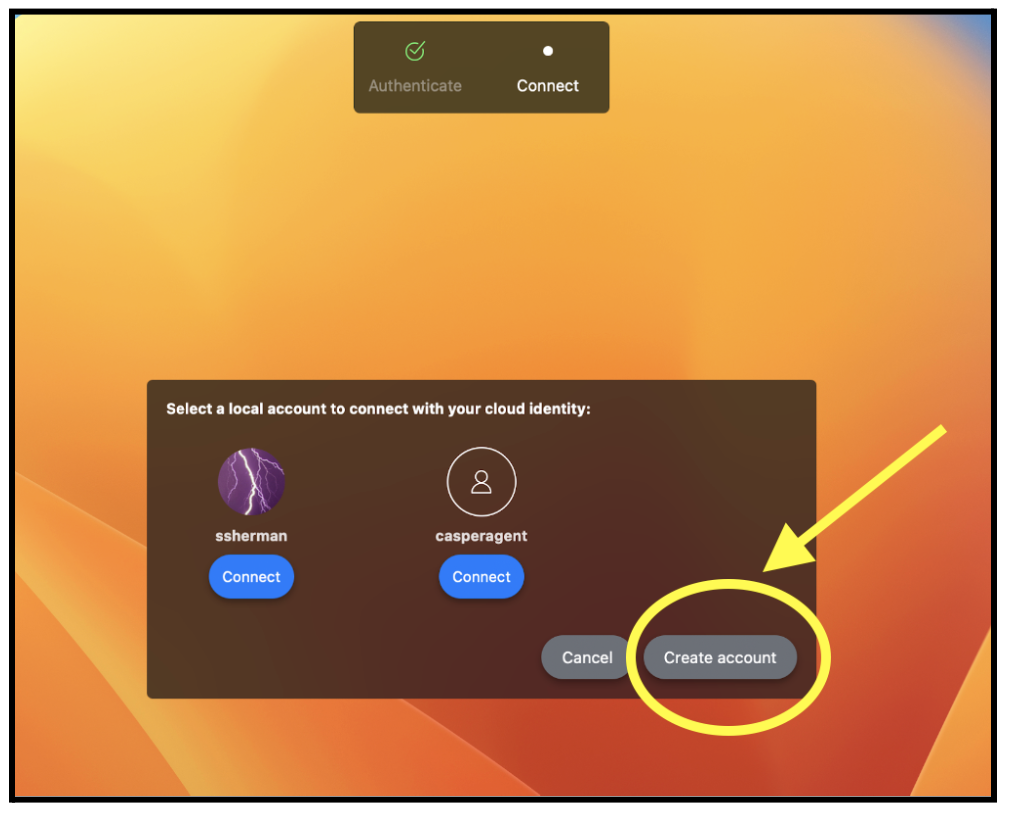
4. Please be patient. You will see this screen:

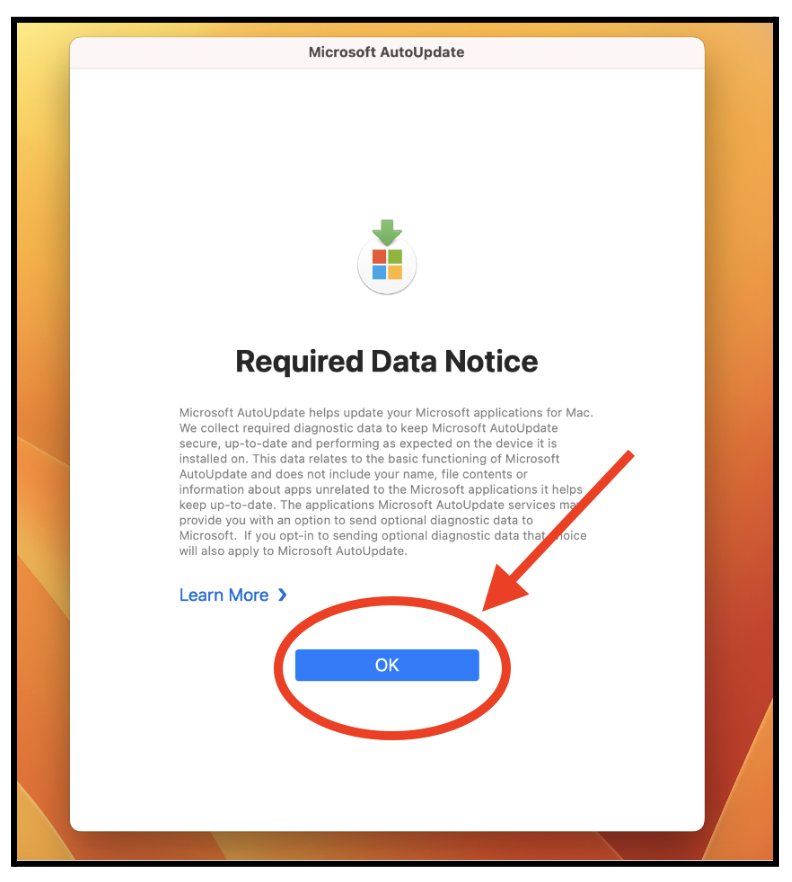
5. Click OK.
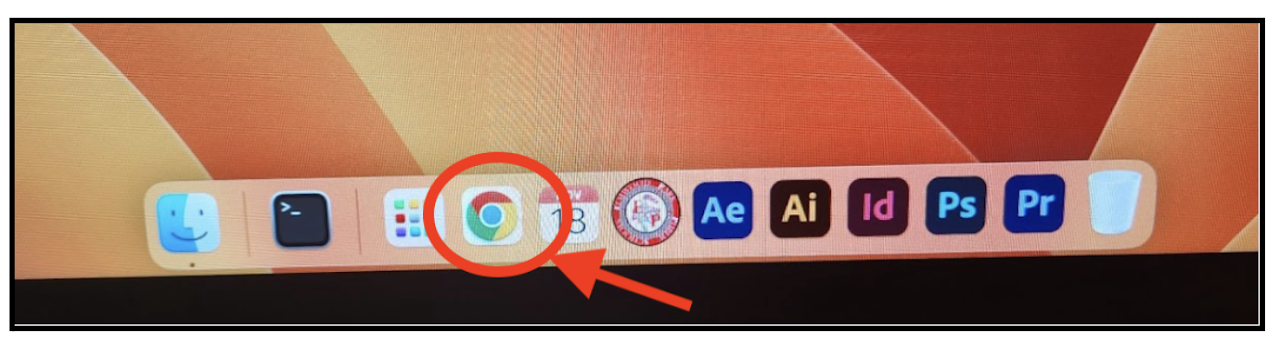
6. Find the dock at the bottom of the screen. Click and open Google Chrome.
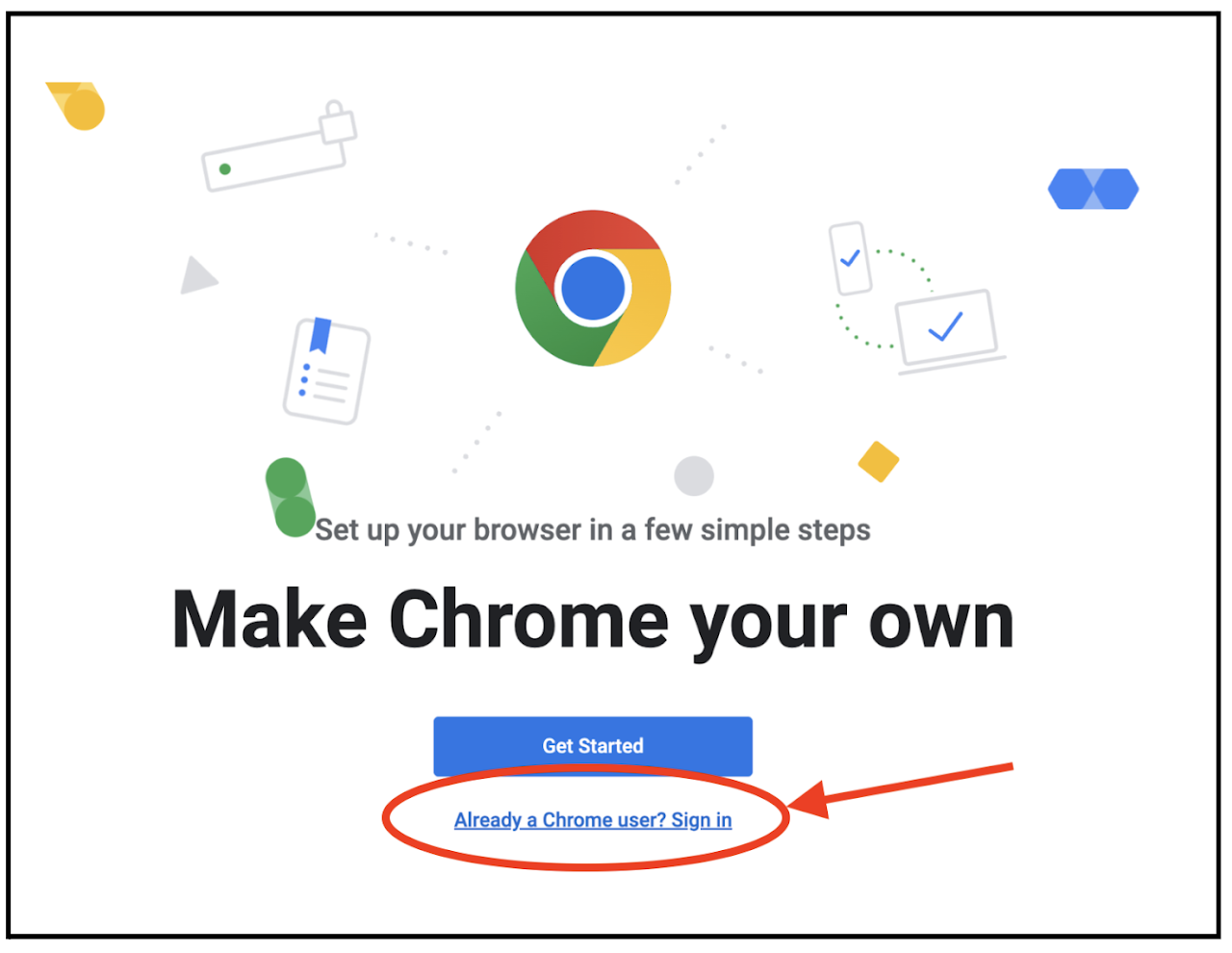
7. Click on Already a Chrome user? Sign in.
DO NOT CLICK GET STARTED.
8. Enter your school email address again.
Example: 110222@students.epps.org (Be sure to enter your ID number.
To make the @ symbol, press the shift key + 2).
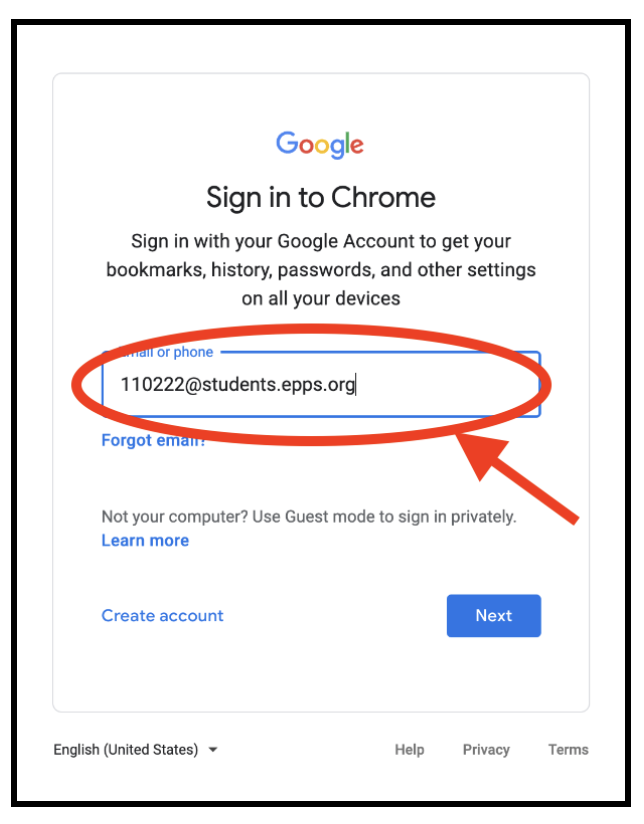
9. Enter your password.
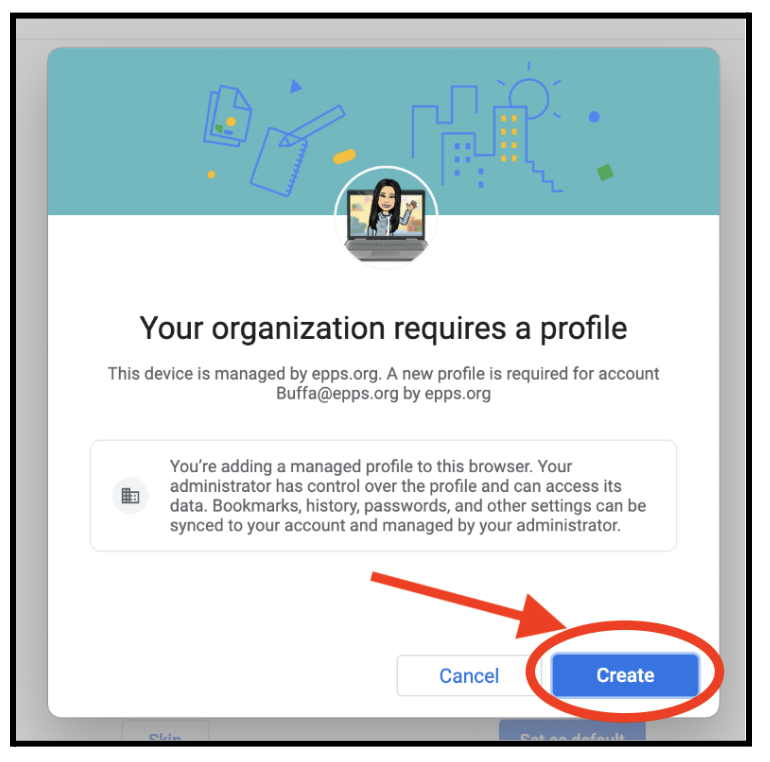
10. Click on Create.
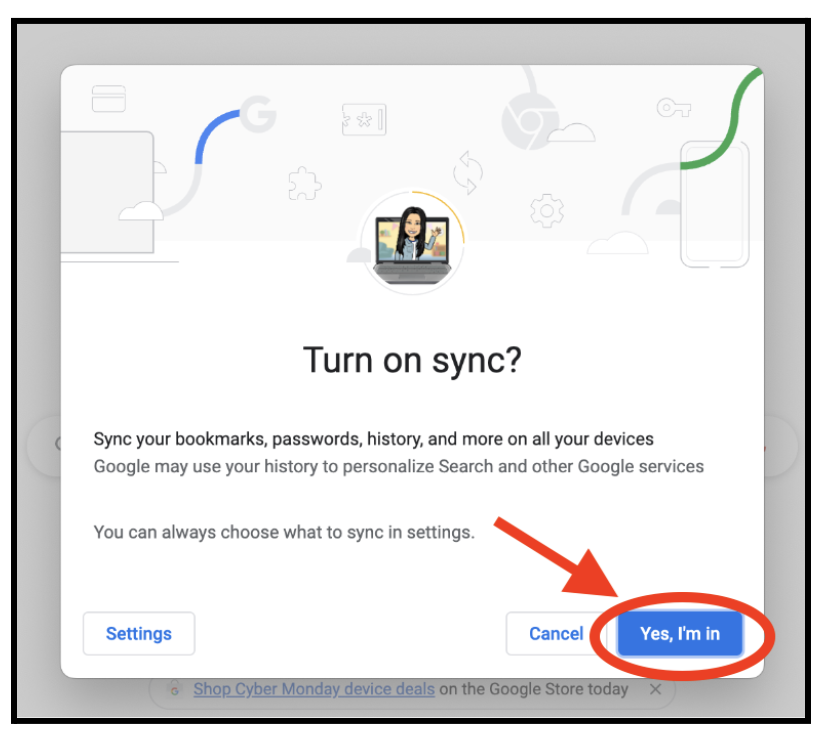
11. Click on Yes, I’m in.
Logging Out Of Desktops
Click on the apple on the top left of your screen. Then, choose Log Out.
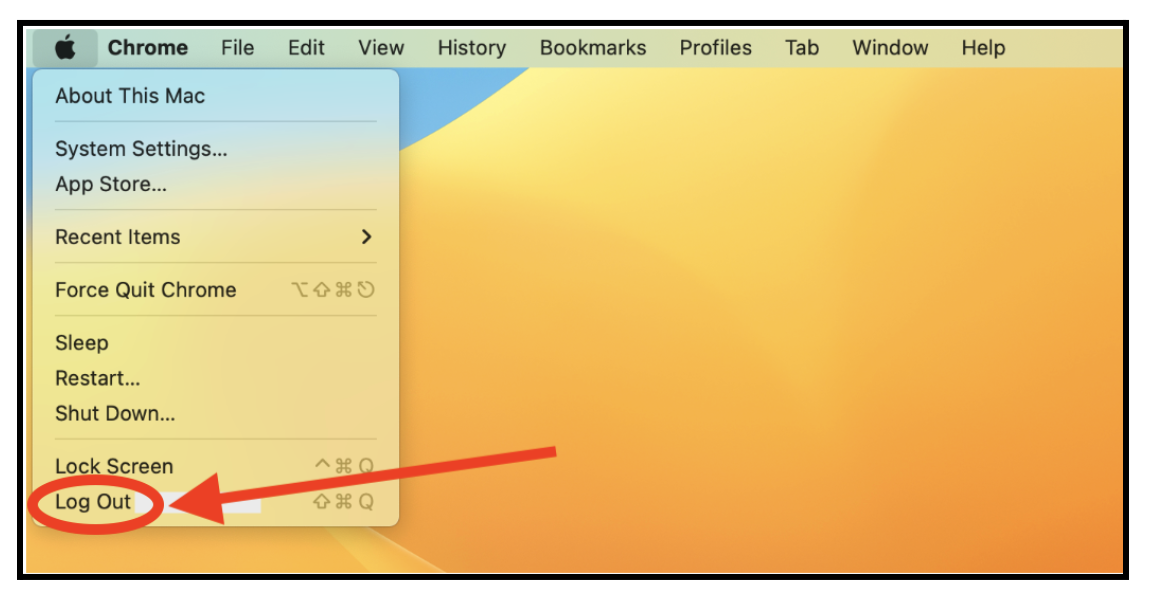
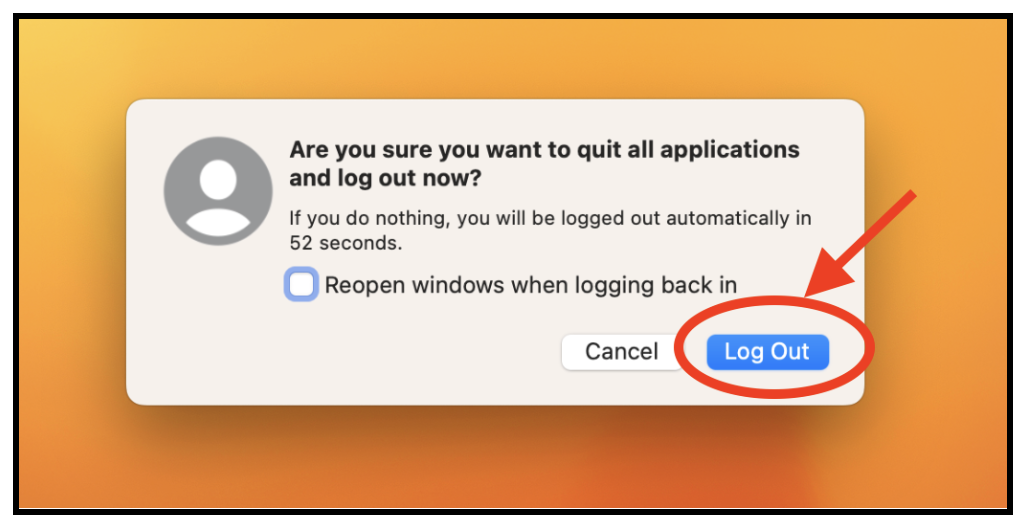
2. Click on Log Out.